Showing posts with label Photoshop PSD files. Show all posts

How to create Pressed and Embossed effect — Adobe Photoshop Tutorial

As everybody know the text embossing and the letterpress text effect has become a huge trend in our computer screens. So in this tutorial we will see how to create the letterpress and embossed text effect in Adobe Photoshop, and we will be using some basic layer styles in Photoshop.


—How-To:

Loading the ASL file in Adobe Photoshop
1. Go to Edit -> Preset Manager.
2. In the Preset Type drop-down list select Styles.
3. On the right side of the dialog box click on the Load button.
4. Browse the location where your ASL file is placed and open the ASL file.
5. The styles are loaded in Photoshop.


Applying the styles

1. Select the layer you want to apply the style to.
2. Click on one of the styles in the Styles palette to apply it to the selected layer.


PS:
If your Styles palette isn’t turned on, go to Window > Styles to turn it on.

How to create Pressed and Embossed effect — Adobe Photoshop Tutorial


1 .PSD | 1 .asl (Style) | 1 .pat (Pattern) | 8.50 MB (8,921,088 bytes)

DOWNLOAD THE PHOTOSHOP FILE USED FOR THIS TUTORIAL
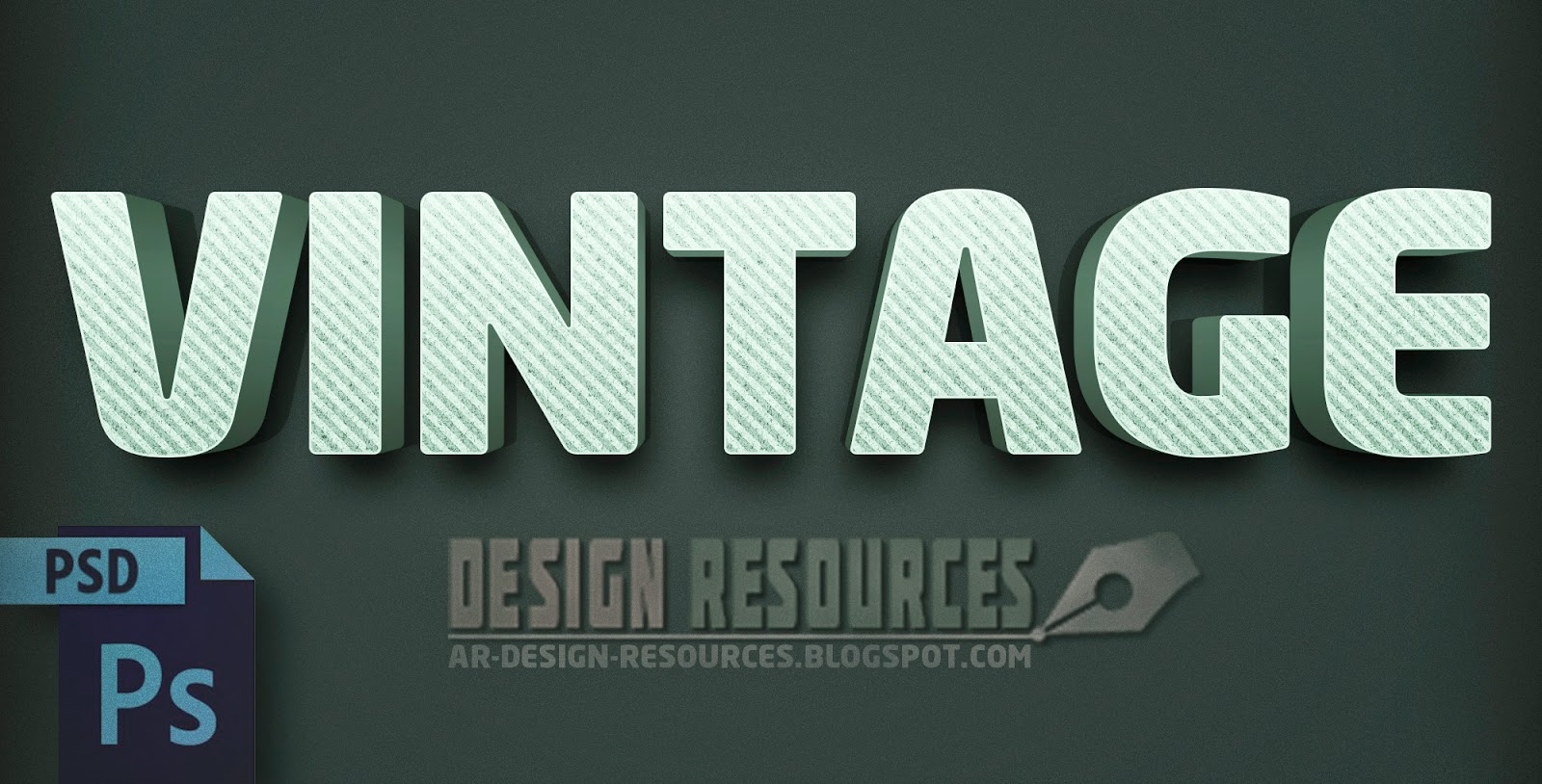
3D Vintage Text Effect — Photoshop PSD

Great 3D Vintage/Retro Text effect PSD, to create 3D retro looking text in 10 seconds. Fully Layered PSD works with smart object layer, 300dpi.

PSD | 9.03 MB


➜How to use:
Just double click on the smart Object (Edit your text) and it will open in a new window, type your text then save the changes, use Hue/Saturation to change the color if you want and you're done.


Jumping to The Moon Photoshop Manipulation Tutorial
 

Jumping to The Moon Photoshop Manipulation Tutorial

This Photoshop Manipulation Tutorial will show you how to make a surreal Jump to the moon using Adobe Photoshop cc 2018.
I hope you enjoy this work & SUBSCRIBE for more Photoshop tutorials :)


Jumping to The Moon Photoshop Manipulation Tutorial


Jumping to The Moon Photoshop Manipulation Tutorial


Jumping to The Moon Photoshop Manipulation Tutorial
→STOCKS:
•IMPORTANT: Any stocks are used for preview and tutorial purposes only.

- Clouds by Ales Krivec
- Sky by Calwaen Liew
- Moon by Yosh Ginsu
- Model by Ben O'Sullivan
-Texture by Letsgettoit

How To Create an Animated Neon Text Effect in Photoshop
 

How To Create an Animated Neon Text Effect in Photoshop


This Photoshop Tutorial will show you how to create a cool Animated Neon Text Effect using Adobe Photoshop CC 2018.


How To Create an Animated Neon Text Effect in Photoshop
 
 
How To Create an Animated Neon Text Effect in Photoshop


→STOCK:
        •IMPORTANT: Any stocks are used for preview and tutorial purposes only.

—
Brick wall - Quicksand Font

How to Create Glowing Neon Lines Effect in Photoshop
 

How to Create Glowing Neon Lines Effect in Photoshop


This Photoshop Tutorial will show you how to create Awesome Glowing Neon Lines in Photoshop. The main trick in this technique is using  the Pen Tool to create a path that will go around the model, and then turn it to a glowing neon strokes.


How to Create Glowing Neon Lines Effect in Photoshop
 
 
How to Create Glowing Neon Lines Effect in Photoshop
 

→STOCK:
        •IMPORTANT: Any images are used for preview and tutorial purposes only.

—
Model1 - Model2 - Model3

Create Stunning Double Exposure Effects in Photoshop
 

Create Stunning Double Exposure Effects in Photoshop


This Photoshop Photo Effect tutorial will show you how create a stunning Double Exposure Effect, by merging a photo portrait with a music crowd image, and then we'll add some cool Bokeh Effects to end up with a uniquely Double Exposure Portrait.

  
Create Stunning Double Exposure Effects in Photoshop
 
 
Create Stunning Double Exposure Effects in Photoshop

→STOCK:
        •IMPORTANT: Any images are used for preview and tutorial purposes only.

—
Model1 - Model2 - Model3

—
Music Crowd
  
—
Bokeh by: CNStock
   -image

How to Create a Retro Vintage Text Effect in Photoshop

How to Create a Retro Vintage Text Effect in Photoshop

This Photoshop tutorial will show you how to create this Retro / Vintage / Old style looking Text Effect and how to apply it to your texts or shapes with the help of smart objects.
➤ Before you start watching, notice that this tutorial was made using Windows OS, so for Mac users simply alter Ctrl with CMD, and Alt with the Opt key.

 
How to Create a Retro Vintage Text Effect in Photoshop
 
 
How to Create a Retro Vintage Text Effect in Photoshop
 
 
How to Create a Retro Vintage Text Effect in Photoshop

—Stock:
→IMPORTANT: Any stocks are used for preview and tutorial purposes only.

—Pattern

—Font:
Mochary font


Customizable PSD file: 200 LIKES
Powered by Blogger.